
BasList
A cross-platform utility to list and convert tokenised BBC BASIC programs with syntax colouring and advanced formatting
Version 1.1.0
In this article
- System Requirements
- How to install
- Getting started
- Using the program
- Syntax
- Previous versions
- Comment or ask a question

 Installation
BasList is a command-line (console) application that lists BBC BASIC program files. The program can be in Acorn or R.T. Russell (Z80) format. The utility replicates and expands native BBC Micro program listing in a Windows environment.
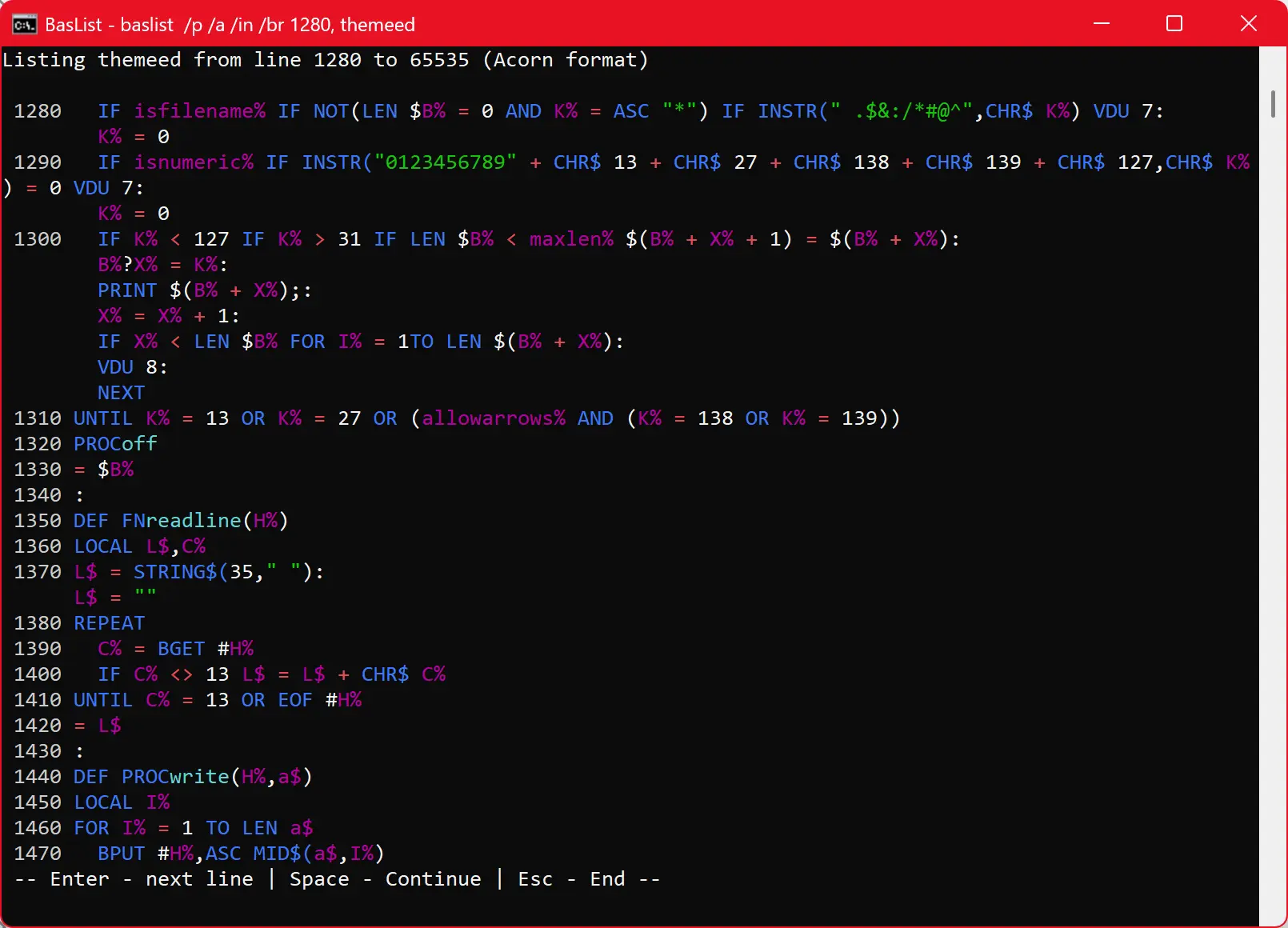
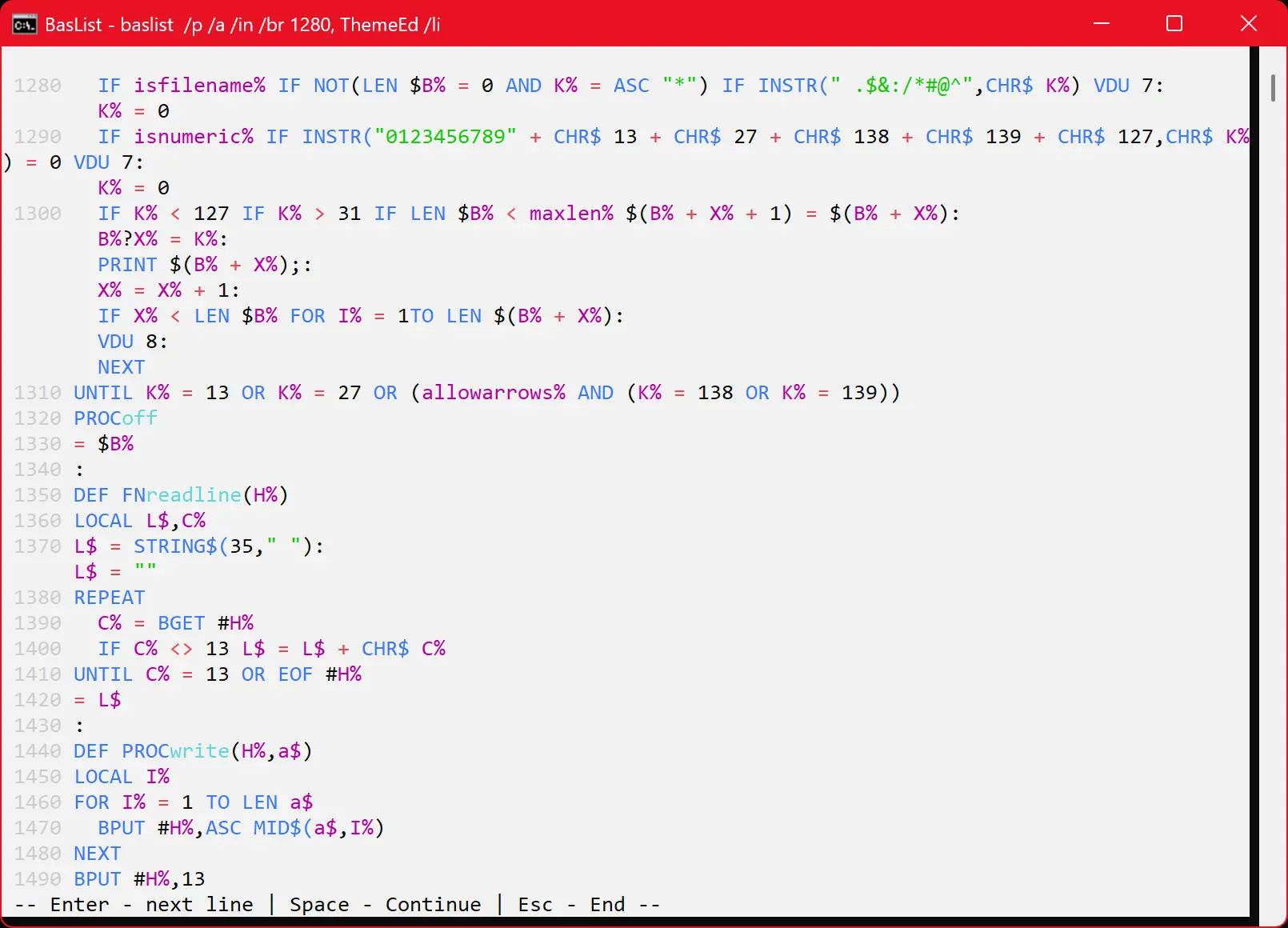 Click the images to see larger versions.
It includes:
- syntax colouring
- formatting options for readability
- indenting of loops and DEFs
- splitting lines at statement separators (:)
- LIST IF functionality
- list FN and PROC definitions
- dark and light modes
- display with and without line numbers
- listing a range of lines
- pausing every screenful
- easy conversion to text file
System requirements
- Windows 10 or later
- .NET Runtime 8.0 or later (https://dotnet.microsoft.com/en-us/download/dotnet/8.0)
How to install
- Download the latest version (e.g. BasList_Setup1.1.0.zip) and unzip the contents into any convenient location
- Right-click the Setup.exe (e.g. BasList_Setup1.1.0.exe) and point to Run As Administrator. Follow the prompts.
- You may wish to add the BasList folder to the system path.
Getting started
The first step is to transfer the BASIC program, either from a physical machine (for example, using a serial cable) or from a disc image.
Suggested utilities:
- For programs written for Acorn 8-bit machines, BeebEm, a BBC Micro emulator [website - ignore the security warning], can export and import files to/from a DFS format image (.SSD, .DSD).
- For DFS and ADFS, Gerald Holdsworth's Disc Image Manager (free, multi-platform).
- For DFS images in Windows, Jon Welch’s DFS Explorer (£5.00)
- For ADFS images (.ADF, .ADL) in Windows, Jon Welch’s ADFS Explorer (£5.00)
Once BasList is installed, right-click the program file and point to Send to > BasList.bat.
The program is listed and saved in the same folder, with '.bas' added to the filename. (See Installation.pdf for full details and further options.)
For use at the Command Prompt and for full control, ensure you have added the BasList folder to the Path, and follow the Installation instructions and ReadMe.
Using the program
While being able to list programs and enjoy syntax colouring at the Command Prompt / Terminal has its obvious advantages, the biggest benefit is often being able to make use of modern editors and comparison utilities [my favourite: Beyond Compare from Scooter Software].
Text files can be loaded into Notepad++ and syntax colouring applied. For best results, you can import this User Defined Language (UDL) file – Instructions here. It is a little limited, though, as Notepad++ only recognises keywords if they’re followed by space or other non-alphabetic character (bracket, colon etc.).
I have now forgotten who wrote this UDL. Can anyone remind me so I can give credit?
Syntax
Full details of the facilities offered are documented here.
Finally...
This program represents a surprising amount of work but is offered to the community free of charge. Future work will develop the analyser into a useful tool and a fully windowed application will be made available.
I welcome feedback and suggestions. I particularly want to hear from you if you encounter a bug. Please use the Contact form below to reach out initially.